Buy anything from 5,000+ international stores. One checkout price. No surprise fees. Join 2M+ shoppers on Desertcart.
Desertcart purchases this item on your behalf and handles shipping, customs, and support to Finland.
⚡ Print smarter, faster, and worry-free — your office MVP!
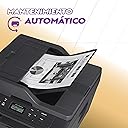
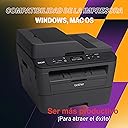
The Brother DCPL2540DW is a compact monochrome laser printer designed for busy professionals who demand speed and reliability. Offering up to 30 pages per minute with automatic duplex printing, it supports wireless and USB connectivity for versatile use. Its 250-sheet adjustable tray and Amazon Dash Replenishment-ready toner system ensure uninterrupted productivity. Backed by a 1-year limited warranty and free lifetime phone support, this printer is a durable, efficient solution for modern office environments.


| ASIN | B00MFG57ZK |
| Additional Printer Functions | All In One |
| B&W Pages per Minute | 30 ppm |
| Best Sellers Rank | #306,982 in Office Products ( See Top 100 in Office Products ) #412 in Laser Computer Printers |
| Brand | Brother |
| Built-In Media | Duplex Unit, Phone Support |
| Color | Black |
| Compatible Devices | Laptops, PC, Smartphones |
| Connectivity Technology | Ethernet, USB, Wi-Fi |
| Control Method | Voice |
| Controller Type | Amazon Alexa, Vera |
| Customer Reviews | 4.3 out of 5 stars 6,018 Reviews |
| Display Type | LCD |
| Dual-sided printing | Yes |
| Duplex | Automatic |
| EU Spare Part Availability Duration | 1 Years |
| Global Trade Identification Number | 00012502638858 |
| Hardware Interface | USB 2.0 |
| Initial Page Print Time | 2 seconds |
| Ink Color | black |
| Item Dimensions D x W x H | 15.7"D x 16.1"W x 12.5"H |
| Item Type Name | Color Laser Printer |
| Item Weight | 24.5 Pounds |
| Manufacturer | Brother Printer |
| Maximum Copy Resolution Black and White | 3000 dpi |
| Maximum Media Size | 8.5 x 14 inch |
| Maximum Print Resolution Black and White | 3000 dpi |
| Maximum Sheet Capacity | 250 |
| Maximum print Resolution Color | 3000 dpi |
| Model Name | Brother Monochrome Laser Printer |
| Model Number | DCPL2540DW |
| Model Series | Monochrome Laser Printer |
| Number of Trays | 1 |
| Other Special Features of the Product | Auto Document Feeder, Auto-Duplex, Compact, Display Screen |
| Output sheet capacity | 250 |
| Paper Size | 12.5 |
| Power Consumption | 510 Watts |
| Print media | Envelopes, Paper (plain) |
| Printer Connectivity Type | Ethernet, USB, Wi-Fi |
| Printer Output Type | Monochrome |
| Printer Type | Laser |
| Printing Technology | Laser |
| Resolution | 3000 x 3000 dpi |
| Scanner Type | Sheetfed |
| Special Feature | Auto Document Feeder , Auto-Duplex , Compact, Display Screen |
| Specific Uses For Product | Office |
| Total USB 2.0 Ports | 1 |
| Total Usb Ports | 1 |
| UPC | 012502638858 |
| Warranty Type | Limited Warranty |
| Wattage | 510 watts |
O**R
Great machine that can print shipping labels.
I've had the printer for about four months at this point, so I figured that was long enough to write a fairly honest review (though I'll certainly update in the future as I have more experience with the printer). I'll start by saying that I love this printer so far. I've really had no negative experiences with it that would cause me to regret the purchase. If you're in the market for a laser printer, you'll be happy with this product. Ink consumption: As stated, I've had the printer for about 4 months, and with the "starter cartridge" supplied, I have about 1/3 ink left, which I feel is pretty good considering the amount I print. I've printed quite a few full images with the printer which uses a lot more ink than just text, so I consider that one reason the ink has gotten down to the 1/3 mark already. I also use "full quality" for most print jobs, though there is a "toner saver" feature if you want to really squeeze all the print jobs out you can. Quality: text is perfect, I have no issues. Image quality is decent for a laser printer, but I'd warn against buying this one if you need it primary for image printing. You'll be better off with a color printer. But, if you need to print out the occasional graph or something, it's not too shabby. But let's be honest, you don't buy a laser printer for great "photo quality" prints. This sucker is speedy. I don't time it, but usually by time I walk into the other room (My printer is in a different room than my computer), the print jobs are already done and waiting. The scanner works as hoped. The copier works perfectly. Really, nothing awful to report here. There is a small learning curve when using the automatic document feeder. If I remember correctly, it's only used when making copies, and not for scans. I may be wrong about that though. The wireless setup was a snap. I connected it, and then I just leave the printer "always on." It goes into "sleep mode" when idle, and wakes up for print jobs. I'm not certain, but I think this is actually better for electrical conservation in the long run, as startups and shutdowns use more electricity, generally speaking. This also ensures you don't have to wait very long for the printer to warm up. (Please let me know if I've got this wrong, or if it's bad to leave the machine on, but I think it's okay). One side note, since this was the biggest concern I had when purchasing the machine: You CAN print multiple shipping label sheets from the normal document feeder. The machine will prompt you to use the front facing feeder, where you have to feed in one sheet at a time, but it doesn't force you to do so. I usually just choose "widest thickness" for paper type, and then choose "labels" when printing. I've done up to about 6 sheets at a time, though I would warn against too many, as the hotter the machine gets, the more likely it is a sticker might peel from the label sheet and gum up the works. To be clear, this is not suggested by the retailer, and might even void the warranty if you were to have an issue, but so far, I've had no problems. Overall, this was a great value. The printer is going strong after 4 months of medium use, with most features being used.
I**W
Solid, time-tested performance
I bought one of these in 2014 and another in 2016. Both are still going strong. Easy to print, scan, copy, and cheap to use even when using Brother cartridges. Joining a wireless network by network name involves slightly tedious button-pushing input, but I appreciate the machine's solid performance and the ease of setting it up in a new network. This is a true workhorse. I did finally have to replace an important part on one of them (maybe a print roller?) but it was a job I could do myself! Both printers have lasted longer than many marriages.
R**N
and is easy to navigate using the MENU
This Brother DCPL2540DW Monochrome Laser Multi Function Printer / Copier / Scanner has a small footprint, and comes with a 35 page automatic document feeder (ADF), adjustable 250 page capacity paper tray, starter toner cartridge, but not a USB cable (most printers these days don't ship with USB / printer cables anymore). The on-device control interface has a two-line lcd display and a few labeled buttons. The on-device menuing system is at most 3 levels deep only, and is easy to navigate using the MENU, +/UP, -/DOWN, OK, and STOP/EXIT buttons. The device is easy to set up for wireless printing, and if you have a USB / printer cable, for wired printing as well. The included Basic User's Guide is minimalistic but sufficient to get you started in the right direction, and a link to a fuller online user's guide is provided. I have a USB cable so I initially set this device up for wired printing from my Windows 8.1 computer. The device driver that's automatically installed after Windows detected the device is not a full-featured driver, so I installed the MFL-Pro Software Suite from the included CD. Once that software suite has been installed, if you bring up the Devices and Printers view from the Windows Control Panel and right-click on the icon for this printer, you'll see that the context menu that pops up has separate Printing Preferences and Printer Properties menu items. The Properties dialog box gives you options such as what pages of your document to print, and a check box to select or unselect duplex printing. The Preferences dialog box gives you options such as enable Print Preview, and Print Document with a custom settable Watermark (such as the word Confidential, or Draft, etc). After some initial testing of the printing and scanning functionalities (discussed more below), I went back to the MFL-Pro Software Suite mentioned above to set the device up for wireless operations, which required some software to be installed, detection of your network, and providing the appropriate password for your wireless network. The set up process was a breeze and I did not encounter any problem. * PRINTING The print speed is as advertised -- about 30 pages per minute (ppm), slower of course if you're printing double-sided. You can set resolution to 300, 600, and 1200 dpi. Both text and graphics outputs are clear and crisp. To save money, if the documents you're printing are not that important, you can enable 'Toner Save' option, and / or print multiple document pages per output page. I've done several 30-50 page print jobs, and have so far not experienced paper jams. You can use different sized paper, including legal and envelopes, by just adjusting the paper guides. Printing on envelopes requires more work that's described in the user's guide, but there is a cool video in the manufacturer's support website that shows you what to do. If you have the MFL-Pro Software Suite mentioned above installed, look for the Brother Utilities desktop icon and click on it, then choose Support -> On-line help and FAQ's. On the manufacturer's "FAQ's and Troubleshooting" web page that this gets you to, look for the Video FAQs in the "Other" category, and you'll see an entry for Printing on Envelopes. One thing I noticed with printing is that once a document is opened, changes to Printing Preferences (say, enabling or disabling printing watermarks) do not take effect until you close and reopen the document, which can come as a surprise to some. * SCANNING You can scan by putting your documents through the automatic document feeder or placing them one at a time onto the scanner glass. There is an on-device SCAN button that you can press, but I find it easier to control scanning using the software installed on my Windows computer. Click on the Brother Utilities desktop icon if you have the above-mentioned MFL-Pro Software Suite installed, then select SCAN -> ControlCenter4 (CC4). With the CC4, you can do Image or OCR scans, and save the results in formats such as JPEG, TIFF, Windows Bitmap, PNG, PDF, Searchable PDF, etc. By default, the results will be saved to labeled folders within the Control Center 4 folder under Documents>Pictures, unless you specify a different location. If you have a supported email application such as Microsoft Outlook, you can set things up so that scan results can be automatically attached to an email. Because I only use free web mail services (which are not supported), I wasn't able to test this functionality. Scanning speed is fast. In my testing, I can confirm that saving results into JPEG, PDF, and Searchable PDFs did work without a problem at all (I did not attempt to save the results into the other possible formats). * COPYING There are two limited ways you can achieve 2-sided copying if you want to save paper. The first way is to place the document you want to copy one page at a time onto the scanner glass. Before you start copying, press the on-device OPTION button to navigate to the Two-Sided menu option, temporarily enable it, then press the START button. With this method, you will be asked to manually flip the document when the device is ready to fill up the back of an output sheet. The second way is to feed the pages of your document through the automatic document feeder (ADF). Again, before you start copying, press the on-device OPTION button to navigate to the Two-Sided menu option, temporarily enable it, then press the START button. What you'll get is the following: Say you feed two sheets of paper to the ADF, and each sheet contains the word "FRONT" on one side, and "BACK" on the other side. If you stack these input sheets such that the sides with the word "FRONT" are facing UP, both sides of the single output sheet will contain the word "FRONT." So this method makes sense only if you want to save paper by copying single-sided inputs to double-sided outputs. * TONER CARTRIDGE You can replace the included starter toner cartridge with either the TN630 (max yield approximately 1200 pages) or TN660 (max yield approximately 2600 pages) cartridges. At the time of this review, the TN630 and TN660 are selling in Amazon for about 43 and 68 dollars, respectively.
B**N
Great printer! Deep Sleep = FIXED!
Once you get the settings straight, this printer is A+. This review will not focus on it's advertised features, but I can confirm that it does indeed do everything it says it will, fantastically. For a more in depth review on that kind of stuff, look at the other reviews. Really nothing more can be said that has not already been said. First off, let me start off by saying that this printer was a pain in the butt to setup. I have been tinkering with and building computers since the mid 90's, and this one threw me for a loop for a few hours. After searching and searching and toggling this and toggling that, I was finally able to remedy the "Deep Sleep" issue that most, if not all, OSX/iOS users have with this printer. The printer would work great for a few minutes, then you'd hear a click inside of the machine followed by unresponsiveness and "Deep Sleep" on the screen. Nothing would "bring it to life" but a reboot of the machine. You could not pull toner levels from it, load it's browser-based interface, or send print jobs. Upgrading the firmware seemed to fix a lot of people's' problems but it did not fix my problem. To cut to the chase, these are the 3 settings I changed to fix this problem. They're accessed in the printers browser-based settings. You might have success changing these on the actual printer itself, but I did not try this. To access this page on Windows, open your web browser and for the URL, put in the IP of the printer. For example, my printer is set to the IP of 10.0.0.177 so I simply typed that in the address bar of Chrome and pressed enter. If you do not know your printers IP, on the printer, press Menu then goto Network> WLAN> TCP/IP> IP Address. Once you're at the web-interface, these are the settings that I changed: General Tab> Status> Automatic Refresh: On 1) Network Tab> Wireless Sub-Tab> TCP/IP (Wireless)> Boot Method: STATIC 2) Network Tab> Wireless Sub-Tab> TCP/IP (Wireless)> Enable APIPA: UN-CHECKED 3) Network Tab> Wireless Sub-Tab> TCP/IP (Wireless)> IPv6 Sub-Menu> IPv6: Enabled All other settings left stock. It will prompt you to restart the printer, and once it's back on, everything should be golden. All setttings work like a charm INCLUDING airprint! Many people were having problems with that. You will also notice that the printer responds very quickly when accessing various settings and data through the browser-interface. This fix worked for my wireless setup, the same should go for a wired setup too. While changing the settings, goto Wired instead of Wireless. Good luck to you all.
D**G
Fantastic Machine: I have made over 16,000 copies and 4,000 scans. No problems
My 10 year old printer, for which I was spending 100s of dollars a year for ink cartridges, finally died. I spend a good deal of time looking at options for a multi-function laser printer (scan, copy, print) with an auto document feeder that would wireless scan and print and which I could print from my iPhone. I finally selected the Brother DCP-L2540DW after reading a large number of positive reviews. I was, however, very concerned with the price. At ~$100 dollars the price was low enough to make me really wonder if it would really do what the descriptions said. The printer arrived and was easily hooked up using a USB connection that I already had. I ran all functions multiple times without any problems including printing from my iPhone. I had some questions relative to installation of the software on a second computer so I called Brother. As noted by other reviewer it took a few minutes to get through but the individual I spoke was very knowledgeable and pleasant and quickly answered all my questions and offered to stay on the line till I had completed installation of a second machine. I did not use a USB connection for this installation but instead chose to do it all wirelessly. Wireless installation was very easy and went quickly without a hitch. The machine seems to be capable in all areas. I would categorize it as an exceptional deal for the money but caution that the materials of construction, hinge design, etc are not designed for heavy handed or heavy duty operation. But, they are more than sufficient if reasonable care is exercised. The only thing I would have liked was the ability to feed and print multiple envelopes but this is a minor thing. Have now used this printer regularly for about 6 months. It has performed flawlessly and met or, in most cases, exceeded my expectations. I do a lot of scanning and love the speed and ease the printer and document feeder deliver. I rarely recommend things but in this case I recommend it without reservation. After three months of fairly heavy usage I remain completely satisfied with the printer. No jams, no problems, good quality. Update. Printer now has made 16,000 copies and over 4,000 scans with no problems what so ever. Could not be happier
A**O
GREAT Printer and Basic Scanner!
Seven years ago, I purchased a Brother HL-2170W B&W Laser Printer from a local store for less than $100 on sale as my printing needs were mainly text documents, and the cost of inkjet printing was eating me out of home and office. My primary need was speed and network connectivity. That printer was a workhorse no matter what I threw at it! And finally just last week, the network connectivity stopped working but with USB, still churned out perfect pages in B/W clarity that was amazing. So, with the need to replace it I looked for a B/W Laser printer that had an auto-sheet feeding scan capability as well as the minimum capabilities of the HL-2170W. Thus, I found this printer. I received it this morning, and here are my opinions thus far; I'll update if anything changes - PROS - 1. SIZE - You just can't be the compact size of the Brother multi-function machines... they pack one heck of a punch in the small, lightweight footprint that they offer; no competitor can seem to squeeze the same features, capabilities and speed into the same size and weight, making this a clear winner! 2. CONNECTIVITY - With both wired and wireless capabilities for network printing, as well as wireless direct, tablet and phone connectivity through the Brother app (which will connect to a host of cloud services for data access), it's can't be beat for connectivity options. And of course, all else failing, there is that USB-2.0 connector on the back that can be utilized if someone has no need for the other options. 3. USER-CONSUMABLES - Since Brother splits their toner and fuser assemblies into two units, cost for cartridges is much less expensive to replace than other companies. HP for instance, bundles the toner/fuser together, charging a fortune when you run out of ink even though the fuser assembly has 2-3 times the lifespan of the toner; with Brother, you can replace the toner (rated for 2,600 pages) when needed and only have to replace the fuser when needed (rated for 12,000 pages). In the 7 years that I had the 2170W, I only replaced the fuser once. 4. PAPER HANDLING - Big 250-sheet paper tray for auto-feeding - half a ream at a time and completely enclosed, you don't have to constantly run and check for paper capacity; plus, since it is a drawer, it stays dirt, wrinkle, stain and relatively dust free before use. 5. FAST - Super fast printing that for the size and price point beats out it's competitors; plus with the duplex feature you can save paper and money while still getting crisp, clean prints. CONS - 1. PHYSICAL SCAN FEATURE - Not really a con, but something that was not mentioned and I didn't think about - the scan feature does not have duplex scanning - it is only single-sided so if you have multiple front/back pages to scan, you either (a) have to do it manually and turn them over, or (b) utilize the scan feature for one side, run them through a second time for the back side, then rearrange the pages in an app that will allow manipulation like that. 2. SOFTWARE SCAN FEATURE - Brother should be ashamed of the scan application that it encloses with the printer - it is *VERY* basic and POOR; I have utilized scanning applications that are included with scanners before and I have to say that this is about the worst - no true advanced scanning control features such as moire-removal/de-screening, lint/dust removal, sharpening, etc. Brother seems to believe that "advanced" features should be is controlling resolution, color vs. b/w, and file output type... very sad and the only place I slash this to 1 star. If you need more control over scanning I would definitely recommend finding a third-part app that will do will you need. 3. NOISE - I generally laugh about people who complain in reviews about the noise of a printer, as if they seem to think a jet engine is firing up in their office! If your printer sounds like that, you better run 'cause parts are going to fly! That being said, I do have to say that this printer has more noise in the rollers than the 2170W, which could be explained by additional complexity of the duplexing option, but overall is still quiet in the grand scheme of things... besides, with the speed of the printer even 100 pages printing means that the noise stops within a few short minutes. --- All in all - very highly recommended printer! Most definitely will satisfy SOHO users or small workgroups (up to say 5 people) that need to share a printer and have scan capability.
G**8
I simply could not be happier. Printing is fast
I complained for years about HP inkjet printers and the insane cost of ink cartridges, but every time one died, I end up buying another. Sick, I know. This time I finally took my own advice and bought this Brother laser printer/copier/scanner, and I have been pleasantly surprised. In fact, I simply could not be happier. Printing is fast, quiet and, thanks to the price and efficiency of laser printer toner cartridges, inexpensive. And speaking of inexpensive - I paid less for this device (with free shipping) than I paid for shipping alone for a laser printer just a few years ago. Networking was a breeze to set up and, and it has worked flawlessly for both printing AND scanning. [Scanning from a device connected to a network instead of directly to a PC has been more trouble than it was worth with all of my HP devices.] Scanning and copying using the document feeder has been flawless, too. It uses AirPrint for seamless printing from iOS devices (I've used an iPhone and an iPad). You can also use the Brother iPrint & Scan app to print from or scan to an iOS device. There are other printing, copying and scanning features that I haven't used. The Brother "Control Center" program (used to set printer options and start scanning and copying from your computer instead of from control panel on the printer/scanner) appears a little clunky, and I would like more flexibility to set up buttons for different scanning functions, but its performance is rock solid. If I have to choose between form and function, I will choose reliability any day. My biggest hesitation in buying this product was due to some reviews that I read that complained about print quality, particularly graphics. I bought it anyway, and I'm very glad that I did. When I print something, 99.9% of the time all I care about is the text, and in my opinion the print quality is outstanding. I printed some photos just to see what everyone was complaining about, and I still don't get it; the results are no better or worse any other black and white laser printer I have used over the years. Honestly, if printing photos is important to you, you shouldn't even consider a black and white laser printer in the first place.
J**.
Don't even think of buying this - you will never get it connected. Worst installation software ever!
Don't waste your money - or your time. This printer looks great - but the drivers are apparently impossible to install. Tried on three windows 7 computers - failed on all three. Wasted 2 hours - never got any way through the installation. None of the printere drivers are available on microsoft update - and since you can only connect this via USB, you can't just go find the driver and tell it to use that driver. I would say that it is the worst install process I have ever seen on any device. Finally tried my Macbook pro - it saw the printer wirelessly instantly (as do all macs!!!) BUT when I tried to print, said it did not have driver - tried the CD that came - it does not work at all on MAC. So I downloaded the OS drivers from Brother web - they installed fine. BUT the install software never got past the wireless install component - failed every time EVEN tho' the MAC could see the printer wirelessly the Brother software could NOT find it and failed....Tried this 4 - 5 times - waste of time. Finally connected USB and told it to try printing on USB - in 20 seconds it printed on USB - but it won't print on wireless connection. I photographed every screen on 3 computers while trying to install this printer. I will try to put up a collage so show how absolutely stupid the software is - I have given up. Here is what really annoys me about AMAZON - I DON'T BELIEVE MOST OF THE REVIEWS I READ- I THINK THEY ARE FAKE, AND MOST OF THE 5 STAR REVIEWS OF THIS PRINTER ARE JUST NOT BELIEVEABLE- Particularly from those who got free product to test - let me see just one bad review from any of them for any product and I may consider reducing my wroth to a mild anger. Amazon needs to clean up its act. These people who get free product and then write glowing reviews should be cut off. There is no way that the installation software of this printer is reasoable. It's rubbish and I have wasted hours and the only thing I got to work was a direct connection on my mac....and that took a while. The wireless button on the printer is useless - you press it - it goes away for 3-4 minutes and comes back and prints a page saying there is no wireless....I have the printer 1 foot from the router!!! and it can't see it - I have a dozen blue tooth and wireless devices at least in my home - I can connect all of them fine - but this Bother printer - wow - I wish could find out where the engineers were trained who came up with this software - they would not get anything less than an F in my instutution. This is 2014 - if you can't design a wireless device that works pretty much instantly, you have a major design problem.
N**E
Great machine, very happy
Considering I bought this while it was on sale, I can say it was definitely a steal. It was shipped straight in the manufacturer's box, which is very well padded and arrived without a scratch. Unboxing was a breeze. The machine and the Laser cartridge each have a clearly identifiable plastic orange strip to remove. Snapping the Laser cartridge into the drum and then inserting the drum (with the cartridge) into the machine is painless. Be sure to push the drum in firmly, as there's a small amount of extra wiggle room that may not be apparent. If you are going to connect your machine to the network via Wi-Fi, here is my experience. The machine supports 802.11b/g/n; note that 802.11n is 2.4 Ghz band only (no 5 Ghz). Do not start by pressing the "WiFi" button on the control panel, as this puts the machine into an endless state of trying to connect with default settings. Instead, go to Menu > Network > WLAN > Setup Wizard. The machine will scan for available SSIDs. The last item in the list allows to enter an SSID manually, and as my router does not broadcast its SSID, I chose this option. Unfortunately after painfully entering the SSID one character at a time using up/down keys, the machine asked for a WEP passphrase without offering WPA2 as an option. Fearing the worst (no support for WPA2?), I temporarily set my router broadcast its SSID. Selecting the SSID from the scanned list correctly asked for the WPA2 phrase and connected without issue. I used DHCP, but of course the options are there to manually set the gateway, static IP, subnet, etc. Warning: do not disable the Wired ethernet setting! There appears to be a bug that prevents the Wi-Fi from working properly if the Wired interface is disabled. I had to do a full network reset on the machine to restore. As a user of primarily Apple devices, I found it to be completely unnecessary to install any Brother software (either from CD or via download). OS X and iOS both work out-of-the-box via the AirPrint functionality the machine provides. The machine is automatically detected on the network - no need to go hunting for it. The printer works flawlessly, including double-sided printing. The scanner works great using the built-in OS X utility. Support includes use of the document feeder, DPI settings, detection of multiple items on the flatbed (perfect for scanning in old photos 4 at a time to separate output files), and output in various formats (TIFF, JPEG and PDF, among others). Scanning to PDF from the document feeder generates a single PDF document containing all pages. Android is mildly annoying as the operating system does not come with built-in AirPrint functionality. It took me a good 20 minutes to figure out how to set the printer up to use Google Cloud Print. Hint: you need to access the Web Based Management webpage of the machine. Once configured, install the "Cloud Print" app from Google onto the android device, and you are good to go! I did a quick check within Windows for the purpose of this review. While the printer and scanner appear to be available and useable without installing any additional software, I did note at least the lack of support for double-sided printing. Windows users are therefore likely advised to install the Brother software to ensure all features are available to use. I performed a firmware update for the machine, which completed successfully. The machine was shipped to me with version 'K', which was upgraded to version 'L' by the update. Check the download section on Brother's website or the firmware section of the Web Based Management tool for the ability to upgrade the firmware. As a smaller consumer model, this machine is only missing one useful feature: easy scanning and copying of double-sided documents. You cannot place a document that has print on both sides in the document feeder and instantly make scans or copies, as this model does not come with the technology required to automatically flip a document on the scanner flatbed. Do not be mistaken, you can in fact make copies of double-sided documents. It is just a matter of convenience as it is necessary to place the document on the flatbed to scan the first side, after which you flip the document over yourself to scan the other side. If you anticipate needing to make double-sided copies frequently, you may want to invest in a model with "Duplex Capabilities" that includes scan and copy. If I am not mistaken, this means purchasing an MFC model. All in all, this is great machine! I have not experienced a single issue thus far. While initial Wi-Fi setup could be made a bit easier (why doesn't pressing the "WiFi" button simply launch the Setup Wizard?), once you get configuration out of the way, everything works as flawlessly as you would expect. Great product if you are looking for a Black and White Laser printer and copier, with a colour scanner.
B**O
Buen producto.
Es una buena impresora. Rápida al sacar las copias manualmente, funciona perfectamente el ADF y es muy rápido al leer los documentos... Lo utilizo para un negocio y la verdad me ha gustado la productividad. Lo bueno: Es rápido Conexión inalámbrica, alámbrica y de Red Rj45 Imprime a doble cara Imprime tamaño oficio y carta y medidas A4, A3 y A2 y además en opalina delgada Botón para copia de ID Botón para escanear directo al pc o celular (necesario guardar ajustes) Modo Ahorro de tóner Ver vida útil de las piezas (tóner y tambor) Escaneo y copias a tamaño oficio y reducciones Escaneo a color Compatible con tóner Cartridge (genérico) Tambor remplazable de manera individual Pantalla con iluminación Desde la Pc se puede realizar la configuración, actualización y seguimiento de la vida útil del tambor así como el nivel de tóner Lo malo: Viene desactualizado los driver en el disco. Recomiendo descargarlo desde la pagina de Brother El tóner que viene es de prueba con lo cual máximo te va dar un rendimiento de 650 hojas. Para que cales la impresora Ya no contiene cable para conexión alámbrica La recomiendo si no eres muy exigente, para mi cumplió ampliamente mis expectativas
C**E
Ótimo produto.
Ótimo produto.
O**I
منتج ممتاز
حقيقي المنتج ممتاز و سعره مناسب جدا مقارنه بأسعار ماركات تانية جودة الصورة حلوه و سرعة الطباعة كويسه أستخدمه سهل إمكانيتها كويسه جدا و تستحمل شغل الحباره بتكفى طباعةعدد أوراق كتير من غير أى تقليل فى جودة الطباعة ارشحها بشده
J**S
Produto excelente
Produto excelente Entrega antes do prazo Vendedor otimo, veio bem embalado
Trustpilot
2 weeks ago
1 month ago