We remain fully operational. Our teams are working around the clock to ensure your deliveries continue safely.

DOWNLOAD THE APP


Customer Services
Copyright © 2025 Desertcart Holdings Limited
DOWNLOAD THE APP
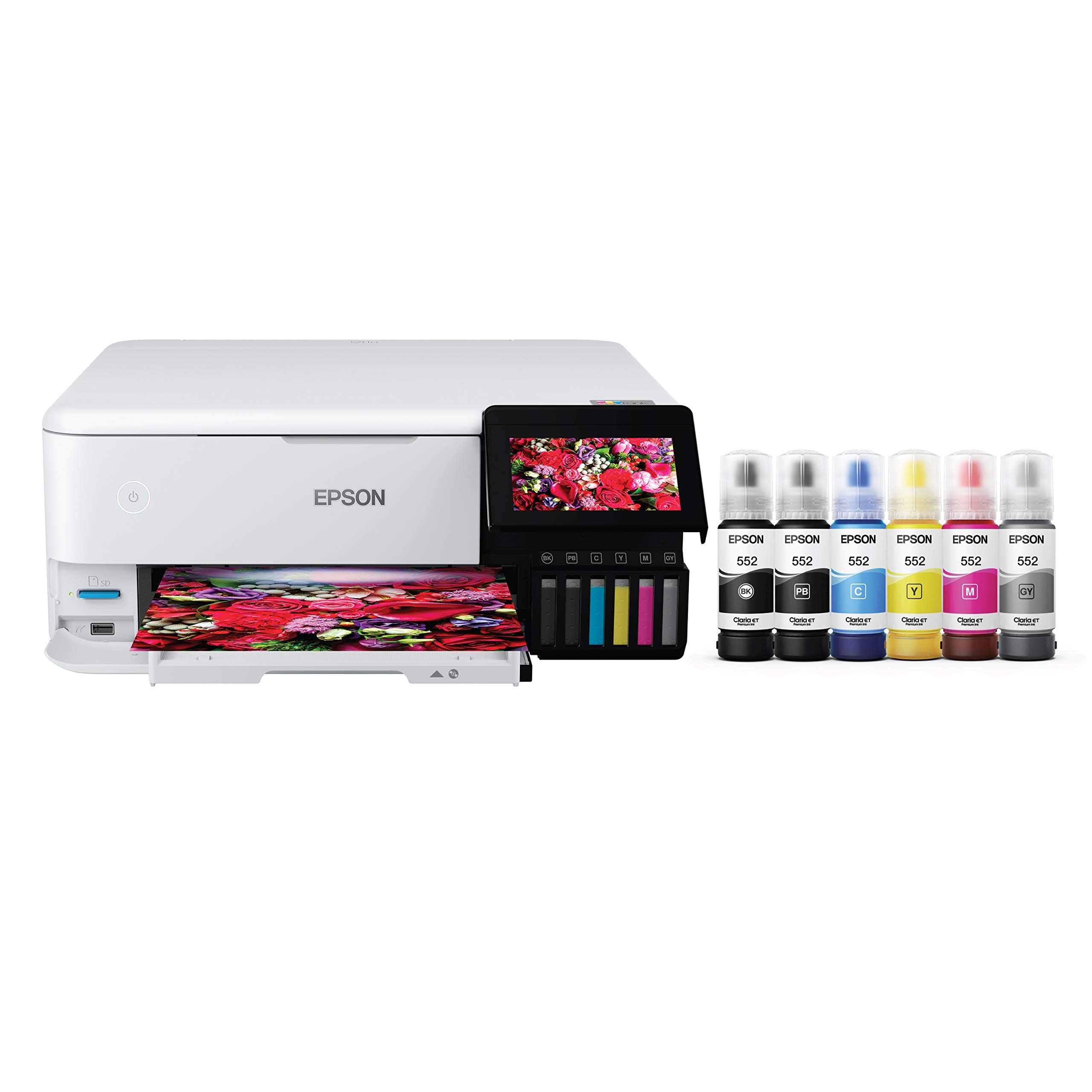
🖼️ Print Like a Pro, Save Like a Boss!
The Epson EcoTank Photo ET-8500 is a wireless all-in-one printer designed for creative professionals and photo enthusiasts. Featuring a cartridge-free 6-color Claria ET Premium ink system, it delivers lab-quality, borderless prints up to 13 x 19 inches with vibrant colors and sharp details. Its 4.3-inch color touchscreen and multiple connectivity options (Wi-Fi, Wi-Fi Direct, Ethernet) enable seamless printing from various devices. With ultra-low ink costs and high-capacity refillable tanks, it offers up to 2 years of ink supply, making it an economical and eco-friendly choice for high-quality photo printing, scanning, and copying.


| ASIN | B08R57JK88 |
| Additional Printer functions | Copy |
| Best Sellers Rank | #26,231 in Office Products ( See Top 100 in Office Products ) #38 in Ink Tank Printers |
| Color Depth | 24 bpp |
| Compatible Devices | Laptops, PC, Smartphones |
| Control Method | Voice |
| Controller Type | iOS |
| Customer Reviews | 4.1 4.1 out of 5 stars (1,148) |
| Date First Available | December 21, 2020 |
| Dual-sided printing | Yes |
| Duplex | auto |
| Hardware Interface | Ethernet |
| Included Components | EcoTank Photo ET-8500 all-in-one, Quick Setup Guide, Power Cable, CD-ROM (User Guide, software), 1 bottle of 552 Photo Black (70 mL), 1 bottle of 552 Black (70 mL) and 1 bottle each of 552 Cyan, Magenta, Yellow, Gray (70 mL) (4) |
| Ink Color | White |
| Is Discontinued By Manufacturer | No |
| Item Weight | 24.5 pounds |
| Item model number | ET-8500 |
| Manufacturer | Epson |
| Max Copy Speed (Black & White) | 16 ppm |
| Max Input Sheet Capacity | 10 |
| Max copy resolution black-white | 600 dpi |
| Max copy resolution color | 4800 x 1200 dpi |
| Maximum Black and White Print Resolution | 5760 x 1440 dpi |
| Maximum Color Print Resolution | 4800 x 1200 dpi |
| Maximum Media Size | 13 x 19 inch |
| Memory Storage Capacity | 64 MB |
| Model Series | Epson EcoTank |
| Number of Trays | 1 |
| Output sheet capacity | 10 |
| Power Consumption | 207 Watts |
| Print media | Paper (plain) |
| Printer Ink Type | Bottle Ink |
| Product Dimensions | 24.1"D x 15.9"W x 13.7"H |
| Scanner Type | Photo |
| Sheet Size | Legal, Letter, A4, Executive, 8" x 10", 5" x 7", 4" x 6", 3.5" x 5", A6, Half Letter, #10 Envelope, User Defined (2.2" x 3.4" to 8.5" x 78.7") |
| Smart Home Compatibility | Smart Home Compatible |
| Specific Uses For Product | Office, Photo |
| Supported Media Sizes | 13 x 19 inches |
| Total USB Ports | 2 |
| UPC | 010343952485 |
| Warranty Type | limited warranty |
| Wattage | 207 watts |
L**1
Unmatched Quality for Images and Photos
This is an 'initial impressions' review after setup and a few weeks use. - Best Use Case: If, like us, your printing needs are 80% creative (artwork, photographs, etc.), 20% light document printing and occasional scanning, then this printer will meet your needs. Even though you won't be buying a new cartridge with a thimbleful of ink every 100 pages, I would not recommend this printer for high-volume workplace printing. It's not built for speed and you'll be filling the paper tray too often to be productive. Likewise, unlike a more office-oriented printer, the ET-8500 does not have a feeder for the scanner. - Unboxing / Setup: While it did take about an hour to set up, the process went much easier than I anticipated based on the reviews I read. We have it connected to our home network via Ethernet and I was able to do all necessary configuration via the printer's touch screen. Aligning the print heads is a rather lengthy process, so be prepared to spend some time on this. Our old printer would semi-self align by scanning the alignment samples once they were printed. With the ED-8500, I had to manually select which alignment settings looked best, which slowed the process considerably. - Hardware Quality: Overall, the printer feels well-built and worth the money. That being said, I do agree with other reviewers who state the paper trays feel a little chintzy and possibly easy to damage if you don't handle them with kid gloves. No problems thus far, however, so I'm simply crossing my fingers with the hoping for the best. On the flip side, I love that the output tray fully retracts into the printer when not in use. Touch screen operation is a veritable godsend compared to the wonky, practically useless LCD on our old printer. In fact, with a thumb drive or (full sized) SD card, you can perform many operations straight from the touchscreen. - Software: While it did install applications I'm not likely to use, Epson's software is much less intrusive, in my opinion, than you-know-who's naggy, resource consuming bloatware. I can't speak to the smartphone application as I have no need for it thus far. I'm also pleased to report that the printer will work without Alexia, which I will never have a need for. No problems with the software and we're able to print from any computer on the network without issue. - Scanning: As I stated above, there's no feed for the scanner, so you'll have to manually change pages if you have a multi-page document to scan. Not a problem for us, though, and my wife loves that she can scan a document straight to her thumb drive without having to bother me while I'm working. Overall quality is more than adequate for all but the most demanding scanning jobs. - Ink: With its foolproof design, filling the six ink tanks couldn't be easier, and after six weeks of use, including approximately 200 pages of image laden documents using the highest quality print level (which would have eaten up two 'XL' cartridges in my old printer), the ink levels in the ET-8500 have barely moved. Furthermore, refilling all six tanks cost only a little more than those two 'XL' cartridges would have. Very happy in this regard. - Print Quality: Even on regular paper at regular print quality, the ET-8500 hands-down smokes anything in its price range. Amp up the print quality and print to photographic paper and the results are absolutely jaw-dropping. Seriously, my brother is a professional large-format printer / sign maker, and the print quality from the ET-8500 rivals his $75,000 4' x 8' flatbed. Rich, vibrant colors pop from the page and are sure to impress even the toughest critic. This, in my opinion, more than makes up for the ET-8500 not being the fastest horse in the race. I will update my review should anything go south, but for now I give the ET-8500 a big thumbs up. For the quality you get, it is well worth the price in my opinion.
A**Y
Original ink lasted me 3 years!
*Update in Dec 2024* Still going strong! Today for the first time in 3 years it finally forced me to refill the ink tanks. 3 YEARS! Still prints beautifully. So grateful for my Epson printer. *Original Review* I bought a Cricut for Christmas and needed a great 3 in 1 printer to print stickers, print docs front and back, print 4x6, 5x7, and 8x10 photos, as well as scan my ultrasound photos. (I did not use this for sublimation, but hear that it can be great for that too.) This thing exceeded my expectations. I’ve been using it almost every day for 5 months and it still is almost filled completely full with ink, which I can see on the front of the machine. Setup instructions were super easy and was a pleasure to get through. Before this printer I had returned 2 other printers that disappointed me. (I ended up tossing my old one years ago because the HP printer dried up so quickly.) This printer feels like it was built to last. The doors and cassettes click into place, feeling very satisfying and never leaving me wonder if I pushed it in all the way. I’ll probably never use ink cartridges again. Eco tank is the way to go. First of all, I had no idea when I bought it that you can scan and print photos using the app on your phone. It’s made things so much simpler to manage and edit. One thing I wish it had was color sliders to tweak the images a bit before printing. The scan bed is AWESOME. It’s very basic with a thin plastic lid, but I’m comparing it to the scan job the scanners at Office Max did. Those were terrible, costly if you have multiple images needing scanned, and always came out blurry with noticeable glares. (The employees also wanted to argue about HIPPA with me with my own ultrasounds…) This printer’s scan does a phenomenal job. With 300 dpi it is crystal clear with no glare! And I love that it saves directly onto your phone. A USB or SD card is only optional. You can choose to scan in color, grayscale, or black and white. For ultrasounds, definitely use the grayscale. The photo print quality is very good as well. Not sure if it’s as good as WalMart prints when it comes to color, but the quality is pretty similar. Sometimes the photos appear slightly blue, but I think it’s the photo paper I’m using. The white paper may have a slight blue hue to it. As a photographer, I’m content with saving me the trip by using this printer instead for my own personal needs. The main con I can think of is that it does print slow if you choose higher quality prints. (May take 3 minutes to print a photo.) If you need speed, this may not be your guy. If you choose Normal quality prints it goes a lot faster, but documents appear very pixely. I had a paper jam once, but it was very quick and easy to open up the printer and pull it out. I have yet to try printing with the cardstock paper feed in the back. I’ve been printing thin cardstock from the top feed and that seems to work out just fine. Another con is sometimes when I’m printing from the computer I have to turn the printer off and on again because for some reason it doesn’t always get the signal to print. Not sure what is going on there, but it doesn’t happen too often. Overall, I am still elated with my purchase 5 months later. Never had a printer that made me smile weekly before. This was worth every penny.
D**2
Epson EcoTank ET-8500 is Junk
This is quite possibly the worst printer I've ever used, and Epson customer service does not follow through on anything. I use this printer for my business where I print orders on regular paper, cards on cardstock, and photos on premium photo paper, all of which this printer states it can handle, but none of which works consistently. Documents that should print from tray 2 (paper tray) print on photo paper from tray 1. Anything printed from the rear paper feeder (usually 110 lb cardstock) must be fed one sheet at a time and must be pushed through manually or it will make a loud sound and cause a jam. I contacted Epson about the issues just before the warranty expired. They had me do several things to the printer, take a bunch of photos of ink levels, label on the bottom, etc., and they listened to the awful sound coming from the printer, but completely dropped the ball on sending me a replacement. I called back and no one has a record of the phone call, the photos I submitted, or anything. I do not recommend this printer or anything from Epson.
D**E
Wow. A friend recommended the Eco-tank when I mentioned my old HP gave out and I didn't know what to buy to avoid the new subscription dystopia we now fund ourselves in. This model was pricer, but I can't believe the quality of the photos we printed as tests. I don't think I could tell the difference between a professionally printed pic and the one in my review. The pic is a little over-exposed, but the printer also gives you the option to troubleshoot/calibrate after every print. The setup was super easy and ink seems to last. Replacement cost for ink is also very fair. If you're concerned filling the ink will be messy like I was, don't be. They've created an impressive mess-free filling process. Buy this printer! You won't regret it!
T**O
Easy set up, great color and b&w printing. Love the ink tanks, and the printing is crisp and clear. Normal printing speed for an inkjet
M**S
The printer does not stay connected to my wi-fi network, cannot connect/detect my phone consistently. The printer disconnects from the network randomly during pictures being printed resulting in half printed images. The Epson Apps (Epson Smart Panel & Epson Creative Print) can never find the printer so therefore cannot use the Apps. The connectivity of this printer is not worth the hassle. I regret this purchase. The few photos I was able to print were great quality. But this printer only works when it wants to connect to your wifi network & devices, which is rarely.
G**6
Excellent printer for photos and text. Four paper feed options, The six ink tanks produce superb colours and detail. The ink view windows, though, are difficult to see through, not like the ones shown in the advertisements. There is, of course, a digital estimate in the usual printer popups. Having said that, this thing is rather expensive, but the photo resolution is as good as the expensive pro version photo printers. I spent hours researching all the Epson printers that do photos, and this one had the best reviews, both on the product page and YouTube. (Some of the YouTube videos show the 8550, which is exactly the same as the 8500 but handles wider paper. Same guts and capabilities as the 8500,) Stop looking around and spend the extra money — you will like this printer and the things it prints.
K**N
UNPACKING & SETUP REVIEW Reasonably well packed, the ink bottles were well-packed. The START HERE guide is very good, better than most. The included CD did not auto-run so I had to find and start it manually. I was confused about whether I should be following the set-up prompts of the printed START HERE guide, the printer's LCD, or the newly installed software. This resulted in quite a few, "What do I do now?" moments. There were also a lot of confusing software installation issues (some optional) that you had to decide on and what they meant. Configuring a wi-fi connection also proved problematic..., until I discovered that an "l" was really a "1". Through a moderate amount of trial-and-error, I managed to get through it but it took me 2.5 hours to get the printer and software installed and connected to my desktop via wi-fi. On the other hand, installing the 6 ink bottles was very easy. With good instructions, it went very smoothly and without dripping a single drop of ink anywhere except into the proper tanks. This process was well designed. The 3 front paper trays are confusing to find and use. Cassette 2 took quite a while to find (you access it by opening the front paper cover and then pulling that cover out towards you). And I still don't know what trays are motorized and are they motorized going in only, out only or both. I think my problems were because we consumers expect a lot of features and capabilities in the things we buy. We want it all in a compact space so products can become over-engineered sometimes. After some time and frustration, the printer was successfully installed and is now operational. I'll try to update the printer's operational use later. PRINTING REVIEW I’ve had a personal computer printer for 42 years starting with the old dot-matrix line printers. When ink-jet printers first came out with their expensive ink cartridges I immediately opted instead for monochrome laser printers that printed only text. I used a laser printer for many, many years…, until now. I purchased the Epson ET-8500 printer for three major reasons… - Finally, significantly lower ink printing costs. - The ability to print in color. - The ability to print commercial lab-quality photos. Sending a print job to the printer, here’s what happens… - The printer wakes up. - The paper output tray door opens automatically. - Then the output tray extends out the front of the printer. - If you are duplex printing (printing both sides) the sheet exits into the paper tray with one side printed, is then pulled back inside the printer, goes through a roller to flip the page over, is printed again on its reverse side and then with both sides printed, exits the printer back into the output printer tray for a second and final time. When Printing is Finished… - The printer tray and door do not automatically return inside the printer. This is accomplished manually with a two-step process using the printer’s LCD screen. Text Printing Overall it’s about the same quality as my old laser printer, sharp and clear. Fast printing. It can also collate and duplex print (saving paper). Color Graphics Printing I’ve never been able to print in color before. What a delight! The printer prints high-quality brochure-type documents. And again it was fast. Scanner I scanned only a few items. It produced wonderful scans even at 9,600 dpi. The software was confusing and difficult to set up. Photo Printing Printing on Plain Paper Surprisingly good-quality photos can be printed on ordinary photocopier paper. The first photos I printed were about equal to newspaper-printed photos which are pretty good. As I learned how to adjust and save my settings subsequent photos were strikingly good, perhaps even great (considering this was ordinary copy paper). This is also a great way to print draft photos before committing them to the more expensive photo paper needed for quality printing. Printing on Photo Paper I’m a photographer so I ordered samples of 23 different types of photo papers (all from Red River Papers). I then tested them to see which ones were best suited for me and this printer. ICC Printer Profiles I downloaded and installed the optional ICC printer profiles. These profiles exact-match the printed colors correctly for your specific printer and paper. Using the profiles is not required. If you do use them you download them from the web, then transfer them into your printer application. I don’t like them. They may be fine for some perhaps most people, but my profiles produced weak color saturation and light prints. I instead chose to adjust the color output manually to provide the more vivid colors that I like. From best to worst here are the best photo paper types as determined by my testing... 1. Metallics 2. Satins and Lusters 3. Glossy 4. Semi-Gloss 5. Matte 6. Rags, Linens, and Canvas types The very best photo papers were… - Polar Gloss Metallic 255 ( with a slight blue cast) and, - 68 UltraPro Gloss (with a slight yellow cast). These two papers produced amazing near-perfect results. For me, using this Epson printer with either of these photo papers exceeds standard commercial lab-quality prints. I compared text, graphics, and photos printed at all four quality settings. Only in the lowest Draft setting do you notice any real difference by eye. A hand magnifier on the other three better settings reveals a difference in quality but it’s not significant (these three quality settings mostly affect print speed). Duplex printing slows the process somewhat but that is to be expected. Epson’s Printer Software Epson provides a confusing number of software applications for this printer. I have seven of them! Some come with the printer on a CD, others are available on Epson’s website. I could not find anything that summarized what each application is specifically for, their differences, or which ones I should be using. So I fumbled my way through them to find this… - Epson Print Layout - I use this to arrange what and how my photos are to be printed. A great piece of software that is not included with the printer but is available for free on Epson’s website. - Epson Scan 2 - for scanning. Old style interface that works well. Again free and available on Epson’s website. - Epson Printer Connection Checker - Used to check, diagnose and solve printer communication issues. Easy to use, seems to work well. - User Manual - Well laid out, easy to search and use. Despite being 346 pages it can be lacking in detail when you have a problem. Ink Life After printing the equivalent of 1,200 4” x 6” photos, then extrapolating to the end of the remaining indicated ink life, I calculate a total ink life of 4,500 photos per ink set. Most of these prints are darker photos often astronomical, with vibrant colors and black backgrounds, as such they would use more ink than typical photos. I would therefore expect typical usage to exceed my projected 4,500 photos per ink set. To Summarize I had quite a bit of trouble setting up this printer. There are a lot of options and features of this very capable printer. Once done this printer now produces great text, brochure-quality documents, and stunning printed photos. When finally set up, this is a truly great printer. I'm now changing my rating from three stars initially to four stars now.
Trustpilot
1 day ago
2 weeks ago