
DOWNLOAD THE APP


Customer Services
Copyright © 2025 Desertcart Holdings Limited
DOWNLOAD THE APP
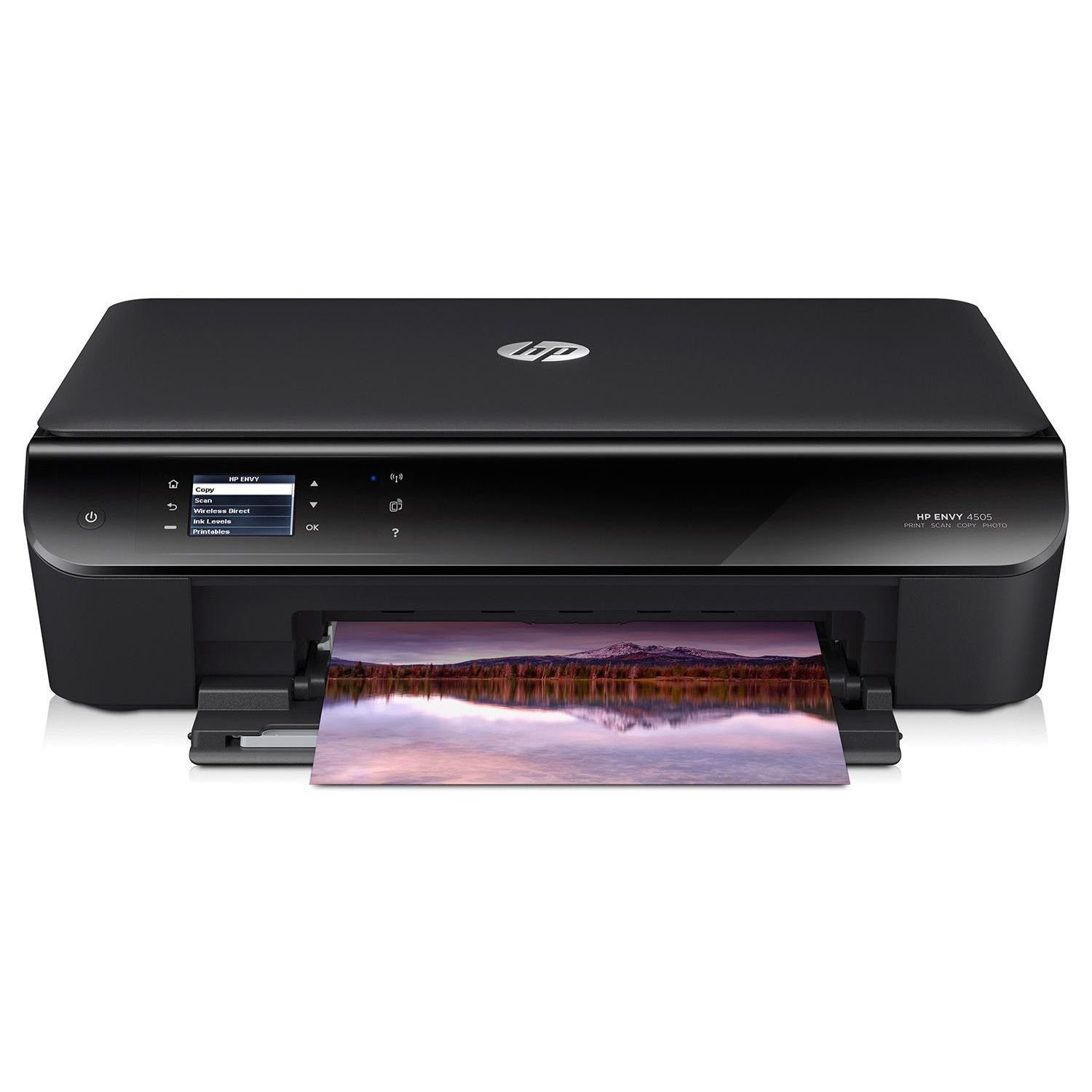


🖨️ Print smart, live sharp — your all-in-one productivity partner.
The HP Envy 4500 is a versatile all-in-one wireless color printer designed for home and office use. It delivers up to 8.8 ppm black and 5.2 ppm color print speeds, supports borderless photo printing up to 8.5 x 11 inches, and features WiFi 802.11n connectivity for easy mobile and PC printing. Compatible with HP Instant Ink and Amazon Dash Replenishment, it ensures hassle-free ink management and cost savings. With automatic duplex printing and high-resolution output (up to 4800 x 1200 dpi color), it balances professional quality with eco-conscious efficiency.




| ASIN | B00CIDQ470 |
| Additional Printer functions | All In One |
| Compatible Devices | Laptops, PC, Smartphones |
| Control Method | Voice |
| Controller Type | Amazon Alexa, Vera |
| Customer Reviews | 4.2 4.2 out of 5 stars (4,752) |
| Date First Available | March 30, 2011 |
| Dual-sided printing | Yes |
| Duplex | Automatic |
| Global Trade Identification Number | 00887111967817 |
| Hardware Interface | USB 2.0 |
| Included Components | Printer^Black Ink^Color Ink^Installation CD^Manual^Power Cord |
| Ink Color | Color |
| Is Discontinued By Manufacturer | Yes |
| Item Weight | 12.32 pounds |
| Item model number | Envy 4500 |
| Language | English |
| Manufacturer | HP |
| Max Copy Speed (Black & White) | 21 ppm |
| Max Input Sheet Capacity | 100 |
| Max copy resolution black-white | 600 x 600 dpi |
| Max copy resolution color | 600 x 1200 dpi |
| Maximum Black and White Print Resolution | 1200 dots_per_inch |
| Maximum Color Print Resolution | 4800 x 1200 dpi |
| Maximum Media Size | 8.5 x 14 inch |
| Memory Storage Capacity | 32 MB |
| Model Series | ENVY |
| Number of Trays | 1 |
| Output sheet capacity | 100 |
| Print media | Back print film |
| Printer Ink Type | Dye-based (color); Pigment-based (black) |
| Product Dimensions | 13.17 x 17.5 x 5 inches |
| Scanner Type | document |
| Sheet Size | 8.5 inch x 11 Inches |
| Specific Uses For Product | Home, Office |
| Supported Media Sizes | 4 x 6 inches, 5 x 7 inches, Letter (8.5 x 11 inches) |
| Total USB Ports | 1 |
| UPC | 887111967817 |
| Warranty Type | limited warranty |
J**Y
HP Envy 4500 prints/scans under Linux following these tips
This review is written to explain to Linux users how to use the HP Envy 4500 to it's full potential, including scanning. Although some portions of it might apply to Windows, it is not targeted to that OS. There are 2 issues you need to understand about the Envy 4500 on Linux. The first is that there you should not use the hp-toolbox or any other front end for scanning *yet* but that probably will be fixed anytime. The second problem involves a squabble between HP and the Linux developers involving potential security issues. Is there a possible security issue? Yes. More on that later, but the security risk is not insurmountable. ** Printing under Linux on a properly configured HP printer, including the Envy 4500, has not been an issue for a long time now so I am focusing on scanning. If you Google the "HP Envy and scan problems" you will see that there are problems which the old solutions cannot solve. ** Don't despair you can get full functionality printing/scanning with the HP Envy models under Linux if you follow the steps in this review and this is one awsome printer for the money and the ink cartridges cost less the previous models. Personally I signed up for ink cartridges to be shipped automatically (the 2.99 monthly option for 50 pages per month was best for me). This option is available for the HP Envy printers and as long as I stay within my limits that amounts to being able to print 50 pages per month of any kind for about $36 per year in ink costs; more pages per month are available if you need them. ** NOTE: All the Linux front ends such as the hp-toolbox, XSane, Kooka, Scanlite, AcquireImages, Simple Scan etc. are just that; front ends. All front ends depend on a back end that is transparent to the user which *MUST* have a driver compatible with the printer in question. The fact is there is no driver yet that will *initiate* a scan from the PC with consistent results. Low resolution scans sometimes complete, but all high resolution scans will hang or disable something and the results are not predictable. No matter how many times you use Yast2 to configure a printer or which of the large number of drivers you choose, initiating a scan from your Linux box will be problematic. However, very soon I expect to see a driver in the list for the Envy 4500. UPDATE TO THIS NOTE TO LINUX USERS: Since I wrote this review, a driver specifically for the Envy 4500 series has been released. I haven't checked other distributions but opensuse 13.2 installs the drivers by default and the Yast2 printer set-up has a button to launch the HP software included in the dialogue when you click the Add printer button. You can check for the presence of the drivers by running the Yast2 Software Management module and searching for "hplip". You should see hplip-hpijs - Only plain printing with HPLIP printer and the driver for scanning (hplip-sane) already installed unless you are running an older distribution. The integrated print, scan, fax is also available through Software Management now; glad to see opensuse abandoned the questionable practice of blocking the installation of HPLIP in this context without any informational message. Downloading the package from HP was not such a big deal, but my customary practice has always been to install printers using yast and they wasted a few hours of my time before I stumbled across the reason in a suse blog. ** There is confusion about what it means in the documentation and on the web to "Scan to PC". Scan to PC does not mean the same thing as "PC initiated scan". There is a temporary problem *initiating* a scan from the PC through *any* software front end when connecting to the Envy 4500; the proper driver does not exist yet. You can scan comfortably using the HP Envy 4500 built in web server user interface. **Hewlett Packard (much to their credit) is adding tools and drivers for the Linux OS in a very timely manner. It only takes about 1 or 2 days to write a driver for a specific printer but then it must be tested before release. In the past, they followed the lead of all exclusively Windows software developers, i.e. "We do not support Linux". I have now retired my aging HP Photosmart C4640 and am using exclusively a new HP Envy 4500 on OpenSuse 13.1 and running the latest release of the HPLIP containg hp-toolbox and other useful utilities, version 3.14.10 as of 10/28/2014. More on installing HPLIP at the bottom. Remember first of all that you *cannot initiate* a scan from your Linux box using the hp-toolbox or any other front end at this time. You *must* use the printers built in web interface to scan *TO* the PC. I do expect that to change any day now, but if you try it now you will get something along the lines of "Error during read: Error during device I/O." Depending on the settings you were using it might be a "cannot connect" message. This will probably be followed by most of the functionality icons disappearing from the Actions tab and possibly something worse; maybe even a system hang. I have never had a problem initiating a print from the Linux box. The only thing you cannot do is initiate a scan using the hp-toolbox from the PC. You *can* initiate a scan by using the built in web server on the Envy 4500 going TO the PC. You must set the printer up first of course, but the web server front end is attractive, intuitive and fully functional. You can get some good information from the site hplipopensource dot com. You can also get some outdated advice; more on that later. ** First, set up your printer from the front panel. I enabled the wireless connectivety first. Personally I don't like to maintain static ips so I have configured my wifi router to be a DHCP server with a narrow range of ips; the ip pool is adequate for our cell phones, laptops and now this printer. For a secured wifi router you will need to know your pass phrase so if you have forgotten it better find it. From the printers home menu use down arrow to Tools, press OK and down arrow to Printer status report; a printed page will include Connectivety settings which will show your printers url (ip address). If there is no ip address the printer is not connected to your network and this problem must be addressed before proceeding. I am not going to reveal my network info, so the ips in this review are examples. If you are installing a new wifi router set that up first. Use a range of ips for the DHCP (Dynamic Host Configuration Protocol) from the non-routable ip addresses beginning with 192.168.x.x or 10.x.x.x with an appropriate mask (Example: 255.255.255.0 for the 192.168.1.x ips). Follow the manufacturers documentation carefully. It takes a few moments for the Envy 4500 to find the wifi server; when it does the blue light on the front panel will stop blinking and burn steady. Another advantage of DHCP is that you will not knock off all your users like when you change a static ip address. Speaking of getting knocked off the network, if you change the name of the printer to something more descriptive you will get knocked off until you power the printer off and on which allows it to reconnect to the wifi. Now that you are on the network via the wifi, go ahead and ping the printer from the Linux box to assure the PC has access to the wifi. If not, resolve that issue first. To make this easier to do print the Envy 4500 status from the front panel. Use the down arrow to select Tools (not visible without scrolling). Hit OK and scroll down to Printer Status Report and hit OK again. Example: Let's assume the page printed out showed your printers ip address to be 192.168.1.109 (for example) under the Connectivety heading on the right side. Ping the printer from a Terminal on the Linux box to assure connectivety of the PC to the same network. PING (Packet InterNet Groper) the printer now: If you cannot ping, su root (you must have the root pw) and try again. You should see something similar to the following. Break out of the ping loop using ^C (hold down control press c) since it does not stop after sampling 4 pings like it does under Windows. linuxBoxName:/home/yourUserName # ping 192.168.1.109 PING 192.168.1.109 (192.168.1.109) 56(84) bytes of data. 64 bytes from 192.168.1.109: icmp_seq=1 ttl=255 time=91.2 ms 64 bytes from 192.168.1.109: icmp_seq=2 ttl=255 time=21.0 ms 64 bytes from 192.168.1.109: icmp_seq=3 ttl=255 time=19.7 ms 64 bytes from 192.168.1.109: icmp_seq=4 ttl=255 time=1000 ms 64 bytes from 192.168.1.109: icmp_seq=5 ttl=255 time=34.3 ms 64 bytes from 192.168.1.109: icmp_seq=6 ttl=255 time=32.8 ms ^C --- 192.168.1.109 ping statistics --- 6 packets transmitted, 6 received, 0% packet loss, time 5005ms rtt min/avg/max/mdev = 19.770/199.952/1000.517/358.831 ms, pipe 2 If the above went well, the printer is connected, so open a web browser on your PC and enter "http://192.168.1.109" (substitute the ip on your status report for 192.168.1.109) in the address bar and you should see the web based set up screen. ** NOTE: It is from the set up screen served by the HP Envy 4500 built in web server that you can configure the options you probably have read about. Including such goodies as printing from your smart phone as long as it has access to your wifi network. ** I am not going to duplicate HP documentation; play with the web based UI and you will find it intuitive. The built in administrator name is "admin". You should enter the admin password first and don't lose it. Remember if you change the printer name you must power off/on to reconnect to the wifi doing the DHCP. ** NOTE: I reinstalled SAMBA on my Linux box just so I could share a newly created folder for the Envy 4500 to scan to using a guide on hplipopensource dot com. There is no longer an option on web UI to specify a shared folder (residing on the PC) on the printer; instead when I changed the name of the printer it *automatically* created a folder on the PC based on the printer name and the Linux $USER/$GROUP environment variables (a simple matter with the root password entered in the hp-install run) so it is advisable to run hp-install logged on as the user who will use the printer most from the console where the USB is plugged. Now I will probably uninstall SAMBA since the MS machinery is diminishing on my network; just to keep things clean. **Once you have completed the install and logged into the built in web server as admin everything is seamless. You can scan without the problems associated with a PC initiated scan and when the scan completes you save the results in a separate step by RIGHT clicking on the scanned image. In this folder on the PC is an html page: file:///home/yourUserName/YourPrinterName/HP ENVY 4500 e-All-in-One Printer series.html with an accompanying folder named HP ENVY 4500 e-All-in-One Printer series_files such as you would expect when saving an html page to the local PC. Don't bother click on the html page you will just get an aborted html page load in your browser with an "Internal error" notification. Connect using this method: "http://192.168.1.109" (substitute the ip on your status report for 192.168.1.109) in the address bar of your browser. ** What was somewhat of a surprise is that not only the images used to display this html page reside in the html files folder but also the images I scan to the PC. Perhaps I will play around with that insignificant glitch later; for now I am happy. ** About that contest of wills between OpenSuse and HP (Started by OpenSuse) over security. The versions of HPLIP older than 3.14.10 (including 3.14.6) included a version tab in the hp-toolbox which would inform you if a newer version was available and instruct you to click to update. Don't bother, it will only open a blank terminal window and *do nothing*. The reason for this is that OpenSuse discovered the HPLIP install program was asking for the root password and opening a port in the firewall. I admit this is a security concern for many people, but IMHO OpenSuse is out of line in simply blocking the upgrade attempt and leaving the user to wonder from whence did the momentary blank terminal window come from and why. It is very easy to code a simple message stating that the "OpenSuse developers have blocked this web install due to security concerns." Perhaps even a link to the "bug" report discussing this; dispelling confusion is always a good thing. Anyway, we all know that we create security risks by opening ports in the firewall for many other applications and these actions probably require root access on most systems in use. ** You cannot install an up to date HPLIP version using Yast->Software Management period; it is being filtered. For now, you can download a tarball (*.tar.gz) or a *.run file and unzip and install by running the hp-install program. **ANOTHER_GOTCHA: OpenSuse will sometimes give you an erroneos Error that HPLIP is NOT installed when you are running an HPLIP version later than the one you can pull up in Yast using a search under Software Management. Come on guys, give your users a break. ** HPLIP is rapidly evolving and frequent updates are likely. It contains many useful utilities such as hp-setup, hp-doctor and hp-plugin. In fact if you decide to install HPLIP (or upgrade it) you should first run hp-setup and make a special note of any required dependencies that are needed. Details of this operation are beyond the scope of a product review. To Summarize: The HP Envy 4500 is a really fine printer and works very well under Linux with a little preparation. Great buy and great functionality. By signing with HP to have the ink shipped to your house you get cartridges that hold more ink with free shipping at about half price. Recommended.
A**T
I HAD ONE START GOOD, then GO BAD, BUT REPLACEMENT IS EXCELLENT
DON'T IGNORE THE NEGATIVE REVIEWS!! I rarely write a review, but this printer warrants one. I have had trouble-free printing with other HP printers for many years and was hoping for the same kind of experience with the Envy 4500. Unfortunately, not so with this one, which I've owned for several months. First, the wireless connectivity, although easy to set up, was only intermittently successful in allowing for wireless printing via my mac computers. I decided that was not a big enough problem to warrant the inevitable time-consuming hassle of a support interaction with HP, so just hooked it up USB. That tied it to only one computer, but it was acceptable for our needs. It printed fine as a wired printer, even doing the 2 sided printing without problems. But recently, it began spewing out letter sized paper along with a message "Paper Too Short...", and I couldn't get it to print anything. I did all the measures listed in web-based support without help. Finally bit the bullet and called HP (still under warranty) and spent 108 minutes going through repeated useless steps, some of which I'd already tried, being transferred not once, not twice, but 3 times. Ultimately, they decided to replace the unit. Had I known about the time investment, I really think I would have just thrown the plastic piece of s___ into the trash and gone with a trusted Canon or Epson, which I've also used in my fine art photography work. I'm worried that the replacement will have problems, too, but am open to trying it. I'll try to remember to write a followup after I've had the new one for a couple of months. ADDENDUM: Originally gave this printer a terrible review (above) after it cost me almost 2 hours on tech support line to get a vital problem resolved. Now I have had its replacement for many months and it has functioned very well ever since. I am able to use the wi-fi connectivity to print from multiple devices in my home. The print quality is excellent for a printer of this price. The copier and scanner work well. I have no idea what percentage of these printers malfunction, but now I have a good one and I'm happy with HP again. SECOND ADDENDUM: Now I’ve owned the printer for more than 3 years. Working perfectly all this time. I increased my rating to 5 stars.
グ**ン
品質が全くダメだな!使うものとならない! 白黒印刷でも出来ず、スピードが遅いすぎる。
L**G
Already own another HP Envy 4500 Wireless All-in-One Photo Copier Printer. We are extremely pleased with the ease and reliability of the printer. Also, these printers use the HP 61 Black and Tri Colour Ink Refills which last a super long time. Great shipping. 5 star rating.
M**O
Adjunto una copia del aspecto de la página cuando intento imprimir el "Printer Status Report".
R**O
This is truly a great printer. I have owned several cannon printers and they all die and make too much noise, This one not only has a nice design but it funtions without hiccups just as good. I've had for about a year now and I refill the ink myself also just fine :)
S**H
I found it easy to set up and connect to our wifi and the first day of printing and scanning had no issues. But it was too big for my desk (it is a beast; not compact by any means) so I packed it up and put it in the closet. Two months later I take it out, and now it can't print a single page without cutting off the tops from various lines of text. I tried everything in HP's troubleshooting article and their support software and my color ink cartridge is down to 75% just from printing test and alignment pages. I finally fixed it by switching from Normal to Best printing mode (a Windows setting). Now it no longer cuts lines in half. Instead it gets halfway through every 2nd or 3rd page then just stops printing and spits the paper out with the bottom half blank. I have to carefully inspect every page that comes out of it. Six months of no printing later, and now the color is not printing at all - it isn't greyscale; instead the bits that should have been printed by the color cartridge are just not printed at all, even though ink levels are fine. I've only used this printer a dozen times in a year and it's been a pain in the butt every single time. I'm just about ready to take a baseball bat to this thing, Office Space style.
Trustpilot
2 months ago
3 weeks ago